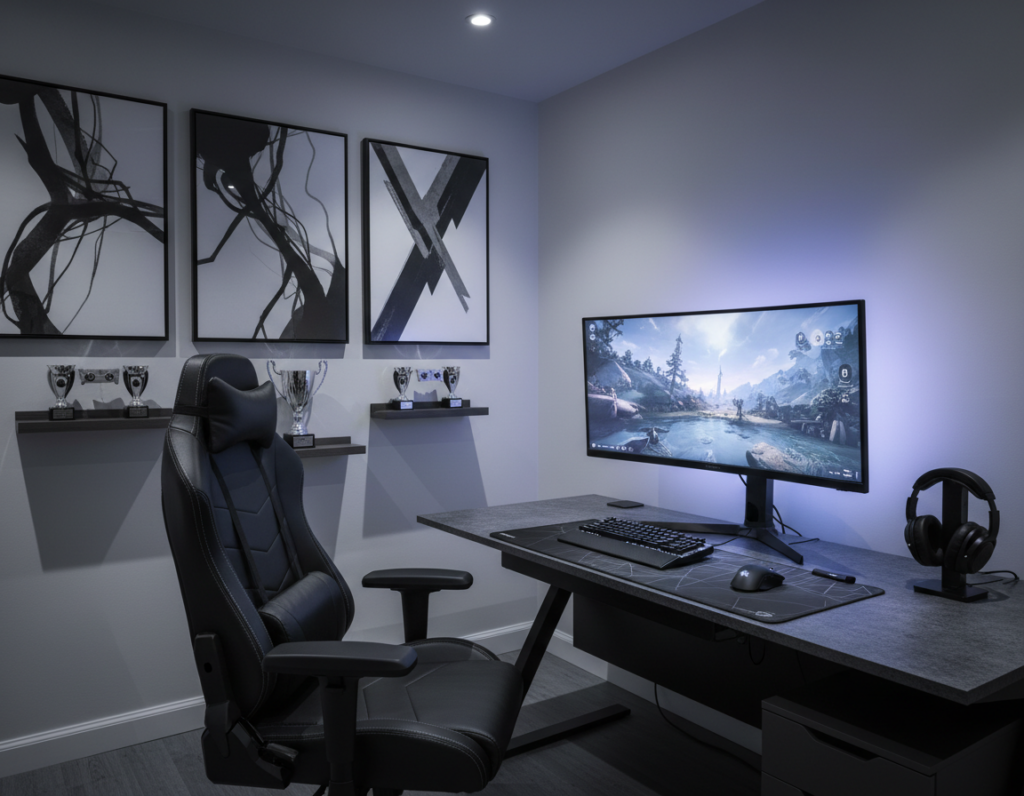
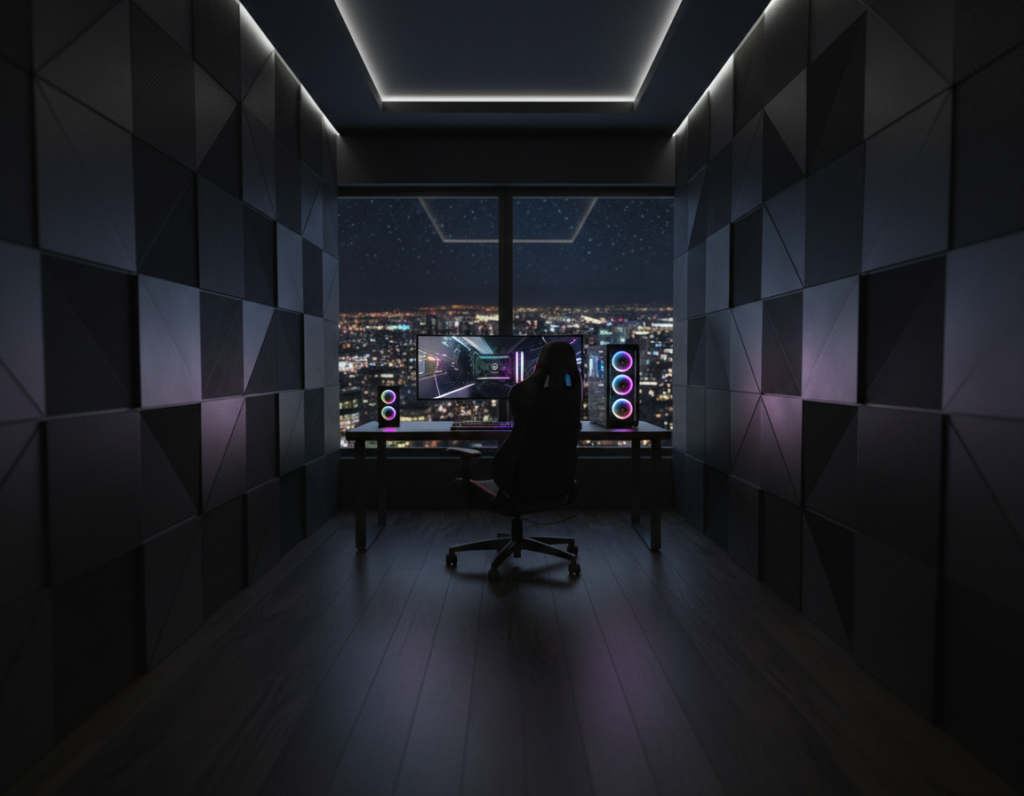
This concise guide shows essential tips to build a high-performance dual monitor setup that keeps a clean, professional desk. It helps readers balance performance and style while improving daily productivity and comfort.
They will learn how to align the primary monitor, choose the right stand or arm, and set resolution and refresh rate for top visual performance. The guide also covers cable routing, power choices, and display color matching to keep the space neat and consistent.
Whether for work or play, small layout changes can boost workflow and reduce strain during long sessions. With clear steps and practical tips, this section primes readers to design a compact battlestation that meets their needs and elevates their games and tasks.
Designing Your Dual Monitor Black Gaming Setup
Start by planning how each screen will serve a clear role—one for active play and the other for tools, chat, or streaming controls. A purposeful layout reduces distractions and boosts focus during long sessions.
Functional placement matters: position the primary display directly ahead and the secondary slightly angled. This preserves comfort and keeps eye movement minimal.
Studies show that adding a second display can raise productivity by 20–50%, letting users manage windows and tasks more efficiently while gaming or working.
- Choose a neutral desk color to let lighting and content pop.
- Adjust seat height and viewing angle to protect posture.
- Keep communication apps on the secondary screen to stay engaged without interrupting gameplay.
For a deeper guide on layout choices and mounting options, see this dual monitor gaming desk setup. Implementing these principles helps create a clean, comfortable system that balances looks and function.
Selecting the Right Desk and Monitor Configuration
Picking the correct desk and display combination sets the tone for comfort, color accuracy, and peak performance. Choose a desk that fits the room and leaves room for both screens while keeping an ergonomic viewing distance.
Monitor Size and Resolution
For most people, a primary display between 24 and 32 inches hits the sweet spot for immersion and desk space. Keeping screens in this range preserves ergonomic distance and reduces eye strain.
Tip: For high-end visuals, 4K resolution (3840 × 2160) delivers sharp detail across a larger panel. Ensure the graphics card and system can handle that resolution on both screens to avoid lag.
Panel Technology
Panel choice affects color and speed. IPS panels give the best color accuracy for creative work and streaming. TN panels offer lower response times and higher refresh rates for competitive play.
- Balance: pick IPS for color-critical tasks, TN if refresh rate and response matter most.
- Match color temperature and brightness across screens to maintain a consistent look and boost productivity.
- Plan desk space carefully when using larger displays so seating distance and posture remain correct.
Maximizing Desk Space with Mounting Solutions
Smart mounting turns crowded desks into efficient work zones by freeing space and enabling quick adjustments.
Gas spring arms are a fast way to reclaim desk space while keeping screens easy to move. They let the user lift a display or swing it aside without lifting the whole unit.
Benefits of Gas Spring Arms
Instant height and angle control: A quality arm positions displays at the correct eye level. That reduces neck strain and boosts productivity during long sessions.
- Stable mounts: When the graphics card supports dual outputs, a sturdy arm keeps screens steady during intense use.
- Cleaner footprint: Elevating the display clears room for keyboard zones, speakers, or streaming gear.
- Seamless transitions: Paired with an electric standing desk that climbs at 2.1 inches per second, arms let users switch positions without shifting screens.
Advanced arms provide broad articulation to align displays for matched resolution and refresh behavior. Investing in a reliable arm for the primary monitor is one of the best moves to optimize comfort and overall performance.
Mastering Cable Management for a Clean Look
Tidy power paths and hidden cords transform a cluttered desk into a focused workspace.
Under-Desk Cable Trays
Under-desk cable trays keep power strips and long cords off the floor and out of sight.
Install a tray under the rear edge of the desk to hold power bricks and bundled cables. This simple move clears space and reduces trip hazards.
- Use Velcro straps to group related cables.
- Label ends for quick changes.
- Keep the tray within reach of the power source.
Using Cable Sleeves
Cable sleeves bundle multiple lines into one neat tube. They cut visual clutter and protect cords from wear.
Wireless Peripheral Integration
Moving keyboards, mice, and headsets to wireless models frees ports and desk area. It also lowers the chance of cable tangles during intense play.
Power management matters: use a quality surge protector and a dedicated stand for accessories like a microphone to keep the primary display area clear.
Effective cable care shows attention to detail and improves the overall experience, making a workspace feel intentional and ready for long sessions.
Enhancing Ambiance with Strategic Lighting
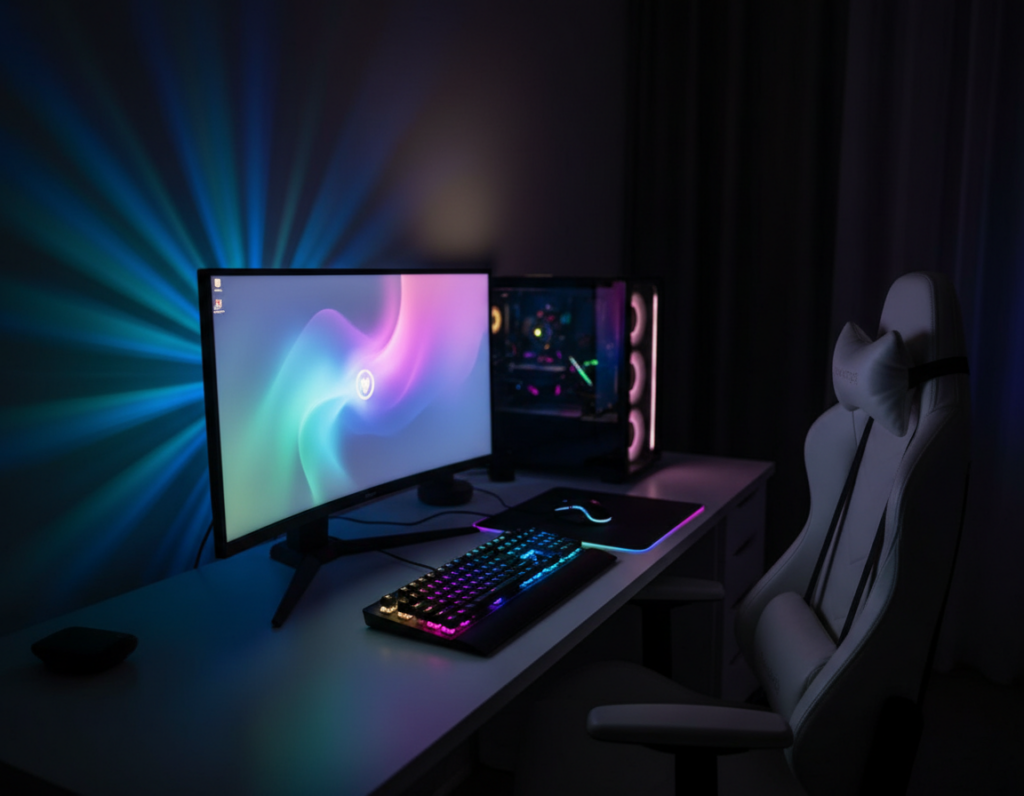
Smart lighting changes how a room feels and how content looks on a monitor. LED bias strips behind the display add depth and reduce eye strain during long sessions.
Choosing the right color temperature matters. Cooler whites keep details crisp for competitive play. Warmer tones make games feel cinematic and relax the eyes at night.
Clean wiring and lighting go together. Hiding cables behind the desk and routing power lines into a tray keeps the surface tidy. A neat desk invites focus and looks professional.
“Proper ambient light can make controls easier to find and improve overall contrast on monitors.”
- Use bias lighting to improve perceived contrast without increasing brightness.
- Integrate smart bulbs like Philips Hue or Nanoleaf for easy scene changes.
- Match light color to the game or task to boost immersion and comfort.
When they hide cables and favor high-quality lights, users turn a simple computer area into a standout battlestation. The right light plan transforms both mood and visual experience.
Prioritizing Ergonomics for Long Gaming Sessions
Long sessions demand a desk and display alignment that supports posture and focus. Proper ergonomics keep players comfortable and protect their body over time.
Adjusting the viewing angle starts with placing the primary display directly in front of the seat. This reduces neck twist and helps the user read windows and game elements without leaning.
Adjusting Your Viewing Angle
An ergonomic chair with adjustable height and lumbar support makes it easier to match eye level to the screen. When the top third of the screen sits at eye height, neck strain drops and reflexes stay sharp.
Use an adjustable arm to fine-tune tilt and height. This lets one customize the angle for both work tasks and games, creating a smooth flow across screens.
- Seat height: Feet flat, knees at roughly 90 degrees.
- Screen distance: About an arm’s length from the face.
- Alignment: Keep the primary display centered and secondary displays slightly angled toward the user.
“A well-configured gaming setup promotes better posture and reduces fatigue.”
For more advanced arrangements and tips on arranging multiple displays, see the multi-monitor gaming and streaming guide.
Conclusion
Small, intentional choices in layout, lighting, and power make a big difference in daily comfort and performance. A thoughtful dual monitor setup improves productivity, multitasking, and the overall gaming experience.
Good cable management and proper ergonomics create a clean desk and reduce strain. Matching resolution and graphics capabilities keeps the display consistent and future-proof.
Invest in quality arms, power docks, and connectivity options to maintain a tidy, professional area that fits your needs. The best gaming setup balances style with function so users can perform at their best.
Use this guide as a checklist to refine systems and enjoy a more comfortable, efficient workspace for years to come.