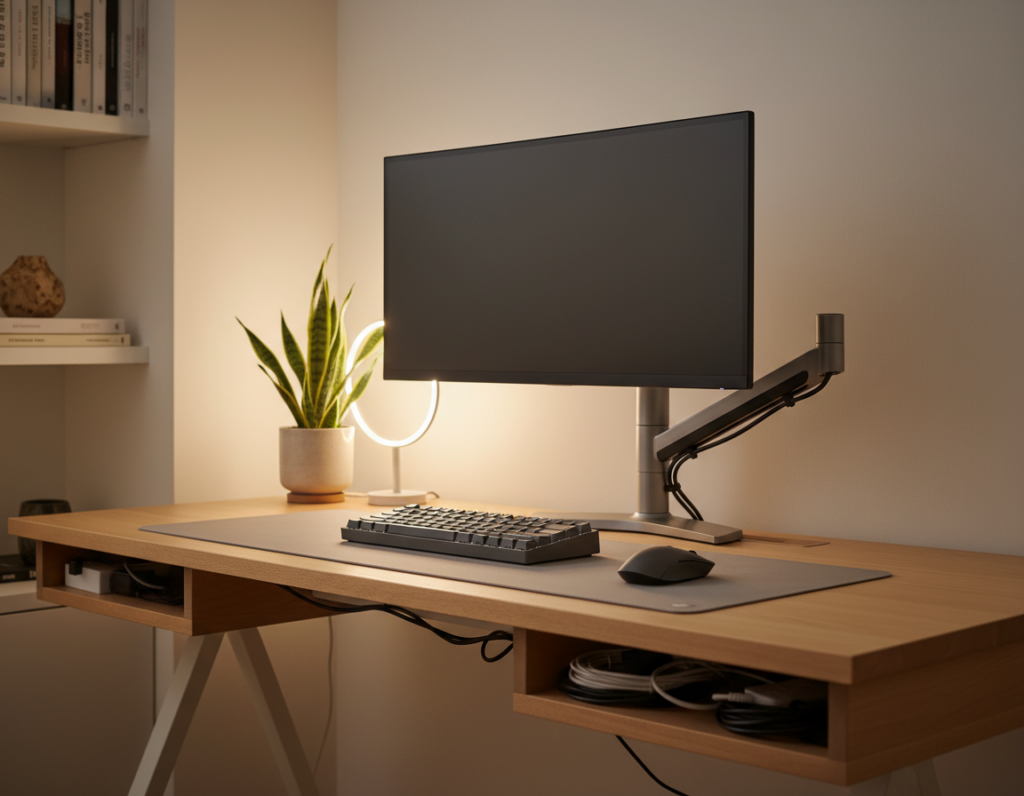
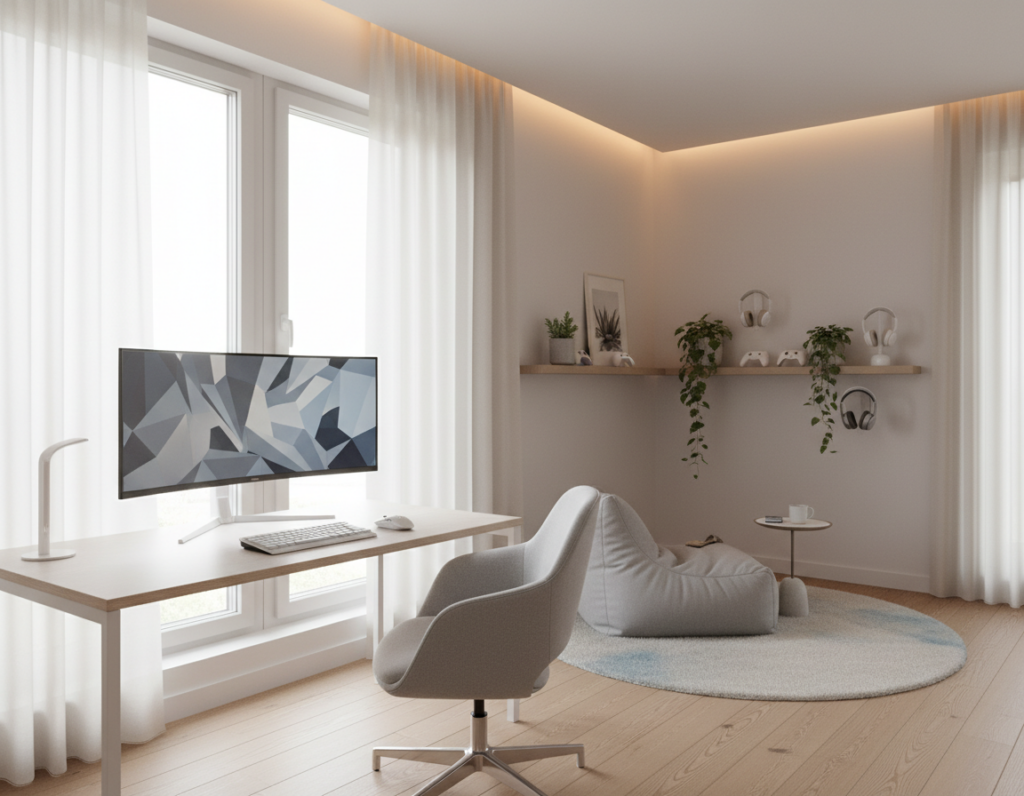
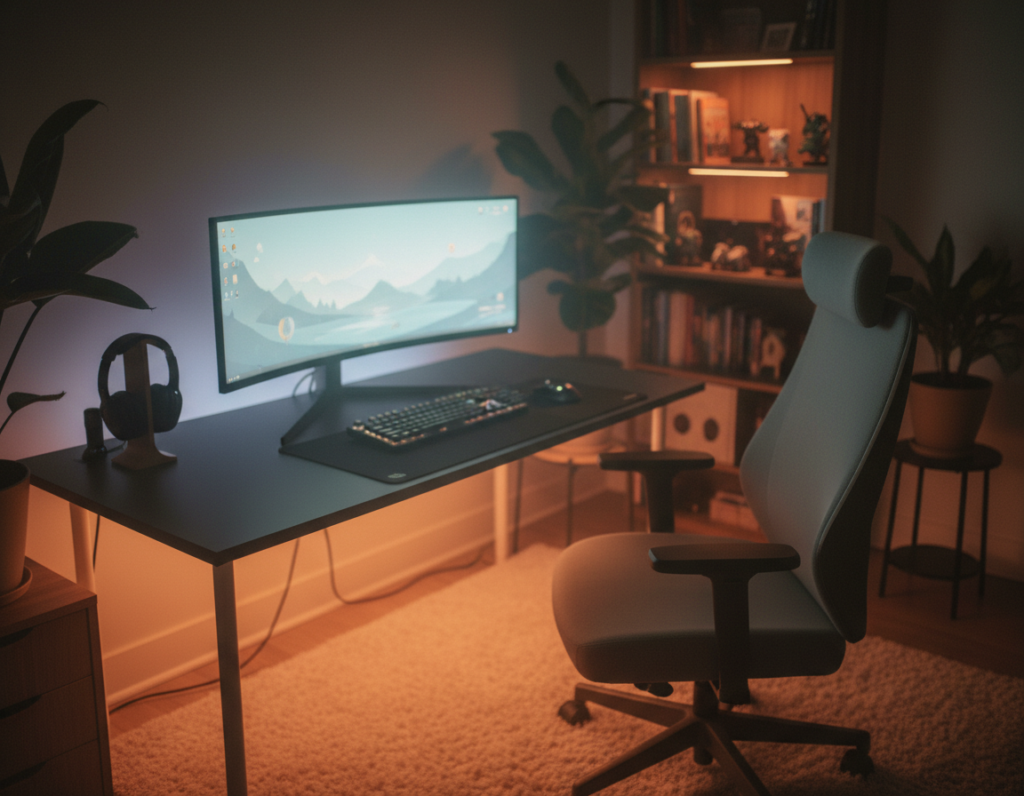
A clean workstation can change how someone works each day. Removing bulky stands frees surface area and makes the desk feel calm and inviting.
A high-quality monitor arm acts like a skeleton for the display. It lets the screen float, reclaims workspace, and reduces visual clutter for sharper focus.
Choosing the right monitor and single arm transforms visual noise into a neat, productive field. Every option recommended here blends with office decor so the desk stays an inspiring canvas.
This short guide gives essential steps to lift the display and make the workstation feel roomy and organized. It highlights how one well-placed device can make daily tasks flow with less strain.
The Vision of a Workspace Sanctuary
He steps into a home office that feels deliberately calm, where every surface supports work rather than distracts. The space is tuned so attention lands quickly on the task at hand.
A true sanctuary removes friction. Tangled cables and bulky stands no longer chew up the center of the desk. The result is a clean field that invites deep focus.
The monitor arm acts as the setup’s skeletal system, holding the display so the surface stays free and healthy posture becomes easier. By curating light, noise, and storage, the room recedes and work flows.
- Morning light meets a blank surface, not clutter.
- Every object on the desk has a purpose.
- The office environment supports long stretches of focused work.
When physical distractions vanish, creativity and productivity stay center stage. This vision helps professionals sustain focus and keeps the workspace a place of clarity and inspiration.
Reclaiming the Prime Central Zone
The center of a desk often hides the greatest opportunity for reclaiming usable space. The Prime Central Zone is the 100-square-inch area directly ahead that static bases usually occupy.
By elevating the display with a single monitor arm, he or she recovers that dead zone for sketching, reference papers, or a compact notebook. This change turns wasted surface into a practical workspace and clears room for short bursts of analog thinking.
The ISO 9241-5:2024 recommendation for a 30-inch desk depth supports proper viewing distance. A deeper desk helps position the screen at a healthy range from the eyes and preserves ergonomic posture.
A clean expanse of wood or laminate reduces cognitive load and lowers visual noise. This floating-screen approach creates a sense of order that aids high-intensity tasks and improves sustained focus.
- Reclaimed area becomes usable for reference materials or quick notes.
- Elevated display removes dust-collecting bases and frees surface space.
- Thirty-inch depth is advised to keep the screen at an optimal distance.
The Ergonomic Imperative for Your Minimal Monitor Arm Setup
Proper alignment between chair, desk, and display prevents fatigue and improves focus. ANSI/HFES 100-2007 defines the neutral working posture that a workstation should support.
Neutral Posture Requirements
A true neutral posture keeps wrists flat and elbows near a 90-degree angle. The screen should sit so the eye naturally meets the center of the display with the neck relaxed and forward-facing.
He should adjust the chair and desk height together to keep the eyes at the correct level. This reduces the risk of tech-related strain and supports long-term health.
The Fit Range Concept
The fit range concept frames height as a personalized target rather than one fixed number. A single monitor arm gives micro-adjustments through the day, which helps match changing tasks and posture.
- Comfort: micro-adjustments lower daily strain.
- Flexibility: the arm adapts to different users and tasks.
- Ergonomics: a proper desk and screen height protect posture.
Note: individual needs vary, so choose components that let him fine-tune position for lasting comfort and reduced strain.
Modeling the Tall Professional Scenario
When someone towers above average height, common desktop gear can force a harmful forward tilt of the head.
For a person in the 95th percentile (193 cm / 6’4″), seated eye level measures near 132 cm. Standard fixed displays sit far lower.
Consequences: a low monitor causes constant neck flexion. Over weeks and months this leads to chronic discomfort and reduced focus during the workday.
The modeled case shows a monitor arm is not a luxury but a medical tool. It delivers the vertical reach required to place the top third of the screen at eye level, which follows guidance from the Canadian Centre for Occupational Health and Safety.
- Ergonomic necessity: raising the screen preserves neutral posture.
- Adjustability: pick equipment that covers extra height and fine-tune through the day.
- Personal fit: proportions vary, so measure torso-to-leg ratio before choosing components.
Note: raising screens significantly keeps the eye and neck aligned for long sessions and makes sustained work far more comfortable.
Designing the Visual Recess
A subtle visual recess turns equipment into background, not focus. This is about making the desk read as open while retaining full function.
Choose finishes that disappear. Matte coatings and slim profiles let hardware recede. A quality monitor arm with a three-section build delivers clean lines and a maximum reach of 27.3 inches, so placement stays precise.
Avoiding the Tech Sculpture Effect
He or she should favor integrated cable channels to keep the surface tidy. A slim profile helps the screen appear to float above the desk and creates more usable space.
- Finish: matte surfaces reduce glare and draw less attention.
- Form: a low-profile design complements high-end furniture like the Blossom Dynamics Office standing desk.
- Function: precise, fluid motion supports proper vision alignment without bulky parts.
Keeping the desktop clear makes even small rooms feel larger. Thoughtful choices create a true visual recess where technology supports work but does not dominate the room.
The Symmetry Debate Between Dual and Single Arms
Choosing how two screens sit together shapes both workflow and the room’s tone.
Dual displays deliver a perfectly symmetrical, weightless look that many consider the gold standard for refined desks.
Two single arms, by contrast, give power users unmatched flexibility. They make switching between portrait and landscape quick and precise. Each arm can tilt or rotate independently to suit task demands.
- Clean footprint: a dual arm system often needs fewer mounting points and preserves desk surface.
- Personal comfort: independent positioning helps reduce neck strain by allowing tailored angles.
- Workflow fit: choose based on how often she or he reconfigures screens and the total weight the desk supports.
Ultimately, symmetry is aesthetic but function rules the day. The right choice aligns visual balance with task needs and the structural limits of the furniture.
Technical Mastery and Installation Stability
Stability is earned: measure, verify, and add margin before lifting the display. A dependable installation starts by assessing the desk and confirming all parts arrived in the box.
Desk Material Strength
Check that the desk thickness sits between 0.39″ and 2.95″. Thin veneer or tempered glass needs a reinforcement plate to spread clamping pressure.
If the surface feels hollow, reinforce it. A solid substrate prevents cracks and long-term loosening.
Weight Margin Calculations
Always allow a 30% weight margin above your screen’s listed mass. Dynamic motion adds force, so extra capacity prevents sag and wobble.
This margin keeps the system stable through tilt and reach adjustments and extends product life.
VESA Compatibility
Confirm a 75x75mm or 100x100mm VESA pattern for a secure connection. Verify included bolts and check shipping documentation before you begin.
If a product page is blocked by a browser error, try disabling extensions or disabling extensions temporarily to access full specs. That resolves many extension blocked or page blocked errors.
- Quick checklist: desk thickness, reinforcement for glass, 30% safety margin, VESA pattern, and confirm shipping hardware.
- Tip: document photos during installation to simplify warranty or shipping claims.
The Zero Wobble Checklist
A zero-wobble station begins with a simple set of verifications before the first bolt is turned. These checks prevent sag, reduce fuss during the day, and protect posture over long sessions.
Desk Material Strength
Confirm the desk falls within the recommended thickness range of 0.39 to 2.95 inches. Thin veneers or hollow panels need a reinforcement plate to spread clamp pressure.
Reinforce glass or hollow surfaces to avoid cracks and long-term loosening.
Weight Margin Calculations
Always calculate a 30% weight margin above your screen’s listed mass. This extra capacity prevents sag when the user changes height or adjusts the chair.
Use the included Allen wrench to adjust gas spring tension. If the monitor drifts upward, turn toward the minus (-) sign to lower tension.
VESA Compatibility
Check VESA pattern early to avoid a last-minute page blocked or extension blocked error when viewing product charts. If the vendor page is blocked, try disabling extensions so compatibility tables load.
Early verification saves time, prevents mismatched products, and lowers the risk of eye strain from improper height or angle.
- Quick checks: desk thickness, 30% weight margin, VESA match.
- Browser tip: if a compatibility page is blocked, try disabling extensions to view specs.
- Final step: tension tune the arm so the screen holds steady at your preferred height.
Linking Functionality with Mental State
Functional cues in a workspace help the brain switch from planning to focused execution.
The Cornell “20-8-2” rhythm—20 minutes sitting, 8 standing, 2 moving—gives a simple structure that maps movement to attention shifts. This rhythm makes transitions natural and reduces fatigue.
Small actions signal big changes. Micro-adjusting a monitor arm or the screen angle when standing prevents glare and keeps visual flow intact. That fluidity helps thoughts move from idea to work.
If someone encounters a page blocked or a blocked extension while reading ergonomic guides, they should try disabling the extension. Often, disabling extensions fixes the issue so the relevant page loads and research is accessible.
A tidy desk and clear space reduce mental clutter. The recommended products for fluid desks are designed to make the workspace a responsive partner.
- Signal: movement cues switch cognitive modes.
- Access: if a page is blocked, try disabling extensions to read guidance.
- Space: clear surface equals clearer thought and sustained focus.
The Productivity ROI of an Optimized Workspace
An optimized workstation converts daily habits into measurable value for professionals. A 10% lift in productivity for someone earning $65 per hour equals roughly $4,875 in yearly gains.
Investing in a quality monitor arm and a smart desk reduces neck strain and boosts focus. This translates into longer, more effective stretches of work and fewer interruptions for discomfort.
Many find a premium system pays for itself in under four months through improved output. Sit-stand solutions also cut daily sedentary time by over 80 minutes, supporting long-term health.
- Higher output: better positioning keeps the screen at the right height so they work with less fatigue.
- Faster payback: daily gains compound into real annual value for busy professionals.
- Professional system: optimizing screens and tools reflects high standards and keeps the office competitive.
Personal Tips for a Flawless Aesthetic
Small styling moves can turn a functional desk into a refined workspace that feels intentional. These details make a big visual difference and keep the area calm through the day.
The Single Sleeve Cable Hack
Run all cords through one internal channel so the desk shows a single sleeve rather than a tangle. This creates a clean line from the screen to the power source and reduces perceived weight on the desktop.
Keep a short service loop under the desk for adjustments. Label cords at both ends to speed swaps and reduce downtime.
Ambiance Integration
Mount a slim LED light bar to the top of the display to cast even light without reflections. Choose warm-white tones for long work sessions and set the bar low enough to avoid glare.
Vision alignment improves when the arm is tuned so the top of the screen sits at eye level. Aim for a desk depth of at least 30 inches to preserve proper viewing distance and comfortable height adjustments.
- Bezels: align monitors so their bezels meet at the center for visual continuity.
- Height: set the level once and tweak for standing or sitting throughout the day.
- Weight: factor in screen mass when choosing mounts and routes for cables.
Creating Your Sanctuary
Designing a personal workspace starts with a few deliberate choices that protect time and attention. Good design pairs comfort with clarity so every item earns its place.
By lifting screens with a quality arm, he or she clears the surface and reduces daily friction. Removing clutter from the foreground lets the brain begin serious work faster.
Choosing a single monitor or a broader array should always respect the body and the desk dimensions. The goal is more usable space and a sightline that supports long stretches of focus.
- Intentional tools: pick gear that supports posture and calm.
- Clear surface: a tidy field invites deeper concentration.
- Daily habit: small rituals keep the mental state steady and boost productivity.
Creating a sanctuary is a practical commitment to health, focus, and higher-quality output. It changes how each workday feels and preserves the state needed to do their best.
Conclusion
Intentional design links physical choices to clearer thinking and longer focus. He or she can shape a calmer workspace that supports daily work and restores valuable space.
Centering the monitor arm and screens optimizes the environment for better productivity. A well-managed dual monitor arrangement becomes an oasis of ease for complex tasks.
Change the desk to fit the body, not the other way around. Aim for standing options, correct eye height, and healthy posture to protect long-term health.
Every small adjustment reduces neck strain and keeps the system reliable. The result is a functional, refined office that makes doing great work feel natural.
If a page blocks further research, try disabling extensions so useful guidance loads and decisions stay informed.