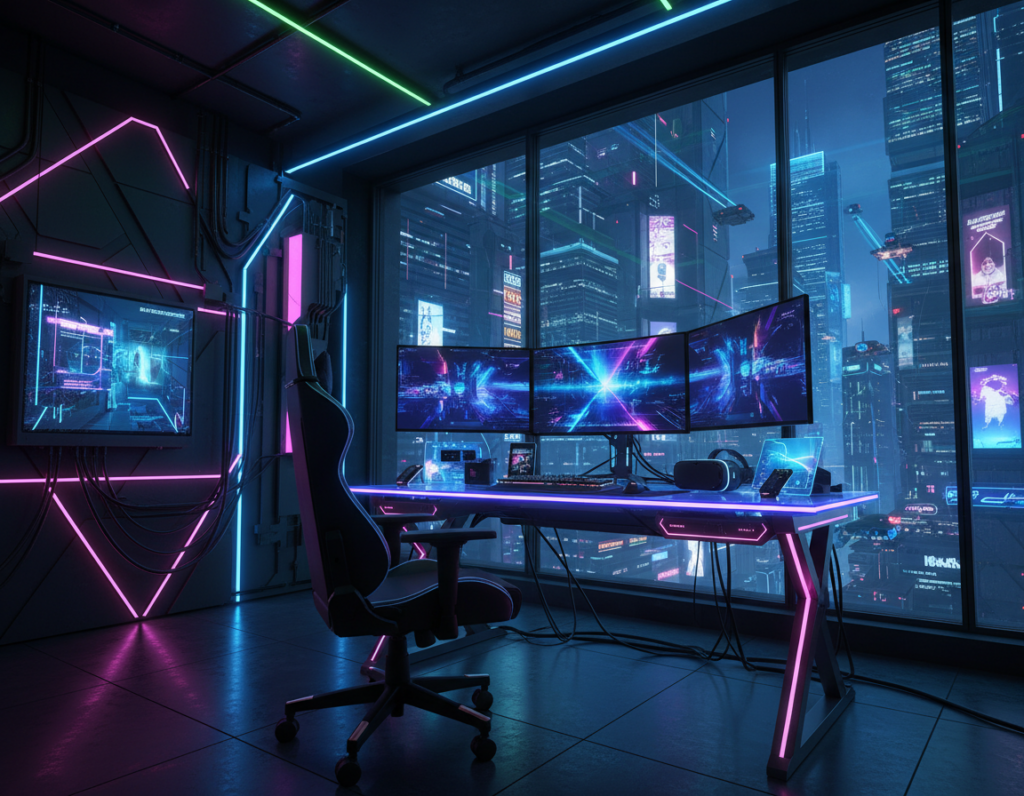
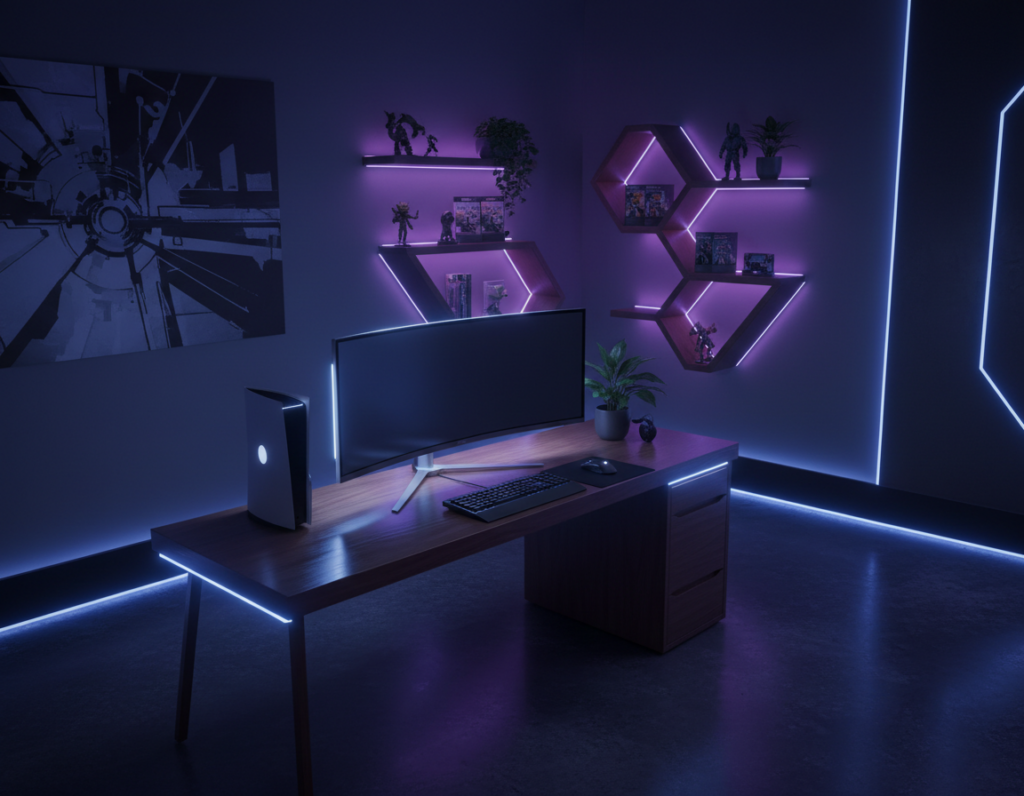
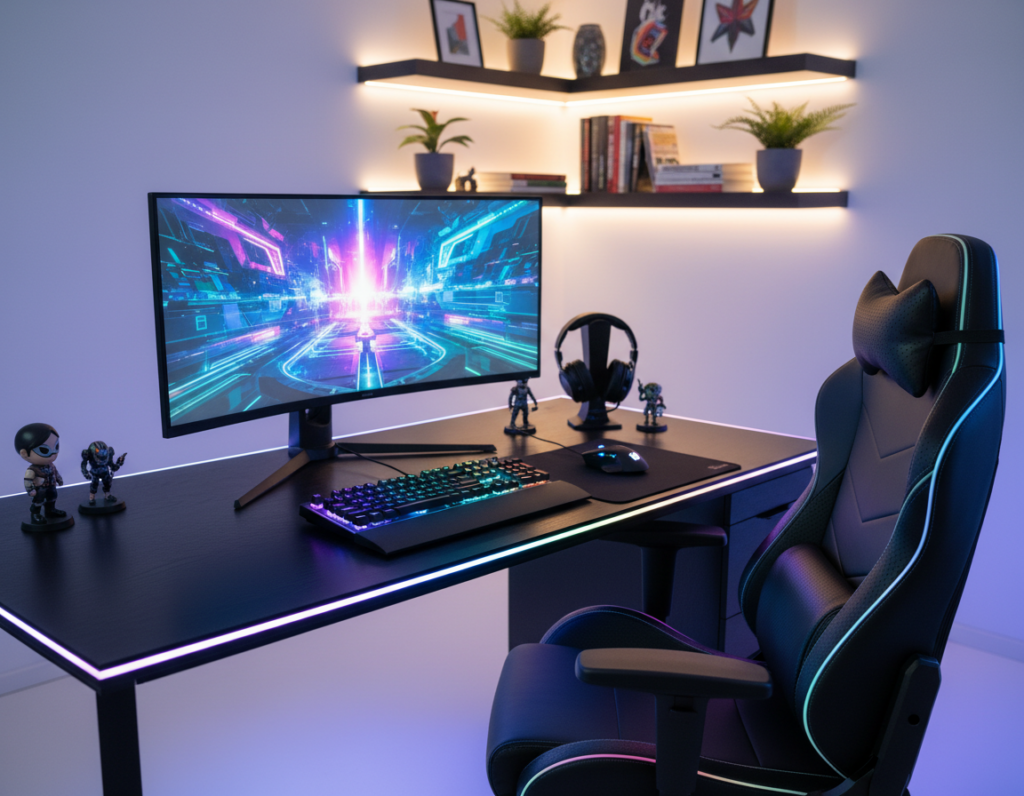
Lighting that moves in concert across a desktop delivers more than looks; it shapes focus and mood. When devices and screen effects react together, the room becomes a single, coherent stage for play and productivity.
Tools like SignalRGB let users customize patterns and match colors across peripherals. Combined with a quality PC from Skytech Gaming, this technology turns a standard workspace into a professional-grade environment.
This short guide explains how synchronization of lights and screen cues can raise immersion and even support better performance. It covers software choices, device connections, and practical steps to create a seamless visual experience that keeps gamers and creators focused.
The Benefits of Synchronized Lighting
Coordinated LEDs turn scattered hardware into a single visual ecosystem. That unity boosts mood and clarity. Players and creators notice a calmer, more focused room when colors and effects match across devices.
LIGHTSYNC RGB and Aura Sync make customization easy. LIGHTSYNC offers presets like Pulsar Point and a Freestyle mode to paint colors across keyboard and LED strips. Aura Sync lets users pick a static color with one click or build complex animations.
Key advantages include consistent light across the entire desk and reduced eye strain. Advanced lighting effects help match gear to mood and take the whole experience to the next level.
- Apply presets or paint custom colors across peripherals and strips.
- Create a professional studio feel by keeping room lighting consistent.
- Adjust output to aid focus—many gamers report less visual fatigue.
Preparing Your Hardware for a Sync RGB Gaming Setup
Start with a quick hardware checklist to ensure every LED and connector is accounted for. Proper preparation prevents mismatches between lights, strips, and the control software.
Checking Peripheral Compatibility
Verify device support by checking your mouse, keyboard, and monitor on the vendor page. For example, Logitech G HUB supports DPI settings and LIGHTSYNC effects for many mice and keyboards.
Confirm that each peripheral is recognized by the chosen control software before you proceed.
Managing Internal RGB Headers
Consult the motherboard manual first. The ASUS Crosshair VIII Formula has two 3-pin addressable and two 4-pin non-addressable headers for case lighting.
Plan connections when attaching fans, an AIO cooler, or multiple strips so the system can handle current draw and control modes.
“Proper hardware preparation ensures every light and LED on your desk is ready to be controlled through a single interface.”
- Check header types and counts on your board.
- Confirm peripherals are software-compatible.
- Map which devices need dedicated ARGB support.
For troubleshooting mismatches and a step-by-step guide, consult this fix mismatched RGB PC guide.
Selecting the Right Software for Your Needs
Choosing the right control app shapes how easily a user can manage every light on their desk. The right software makes it simple to adjust color and to change settings across multiple devices.
SignalRGB works on Windows 10 and 11, and the basic version is free to download from the official page. Armoury Crate acts as a one-stop hub, combining device control, fan management, and system monitoring with lighting tools.
Users should confirm hardware support on the provider’s support page before installing. A good suite will let them customize rgb patterns, manage light output, and save profiles for different scenarios.
“Pick software that gives direct, predictable control over colors and output.”
- Check compatibility with Windows 10/11 and your peripherals.
- Prioritize clear interfaces that make it easy to change settings.
- Download the latest version from the official site and review the support page.
Installing and Configuring Your Lighting Control Suite
Install the lighting control suite first, then confirm the app detects each peripheral before continuing. This helps avoid missed devices and reduces troubleshooting time.
Updating Drivers and Modules
Open the control app on the desktop and follow the on-screen prompts to install the client on your computer. During install, allow driver updates when requested so the software can talk to your devices.
To ensure Armoury Crate recognizes hardware, open Settings, go to the Update Center tab, and install every update available. After drivers finish, restart the system so modules for the keyboard, mouse, and monitor load correctly.
- Follow prompts carefully during installation to avoid missing components.
- Specify which devices are connected so the suite can grant full control.
- Download plugins for strips, leds, or special peripherals to enable full effects.
- If problems persist, consult the software support page or tutorial videos.
“A properly configured system will let users manage lights with precision and keep the control suite compatible with new hardware.”
Keep software and drivers current. Over time, updates add device support and improve color fidelity. This small maintenance step saves time and ensures consistent effects across the desktop and monitor for a better gaming experience.
Mapping Your Physical Layout for Cohesive Effects
Mapping peripherals to their true positions lets light transitions feel natural across a room. In SignalRGB, users place each device on a virtual desk so effects travel in the same path they do physically.
Positioning matters. Aura Sync offers grouping for the motherboard, monitor, memory modules, and case strips so a single animation covers all hardware.
When devices are arranged correctly in the app, LEDs and strips respond as one system. This yields smoother color changes and fewer abrupt jumps between lights.
“A well-mapped layout makes your desktop and room feel like a single, intentional design.”
- Lay out the monitor, keyboard, and mouse where they sit on the desk.
- Group case lights with internal headers to match panel flow.
- Adjust positions until color transitions look continuous across gear.
Take the time to map the physical space; it turns scattered lights into a unified visual system that boosts immersion and polish.
Enhancing Immersion with Dynamic Game Integrations
Real-time capture of pixels lets hardware mirror on-screen events with split-second precision. This creates a reactive layer that makes play feel more alive and tactile.
Utilizing Pixel Capturing Technology
SignalRGB uses pixel capturing and OCR-style analysis to read the screen and translate dominant tones into matching lights. When an explosion or flash happens, colors shift instantly across the keyboard and mouse.
Enabling Automatic Game Profiles
Aura Sync offers Adaptive Color sampling so users can pick a screen area to sample continuously. Automatic profiles launch when a game starts, so effects change without manual input.
Dynamic integrations make peripherals react to in-game moments and boost immersion. They work fast, are precise, and let the device feel like part of the action.
“Using pixel capture and automatic profiles turns static lighting into an active part of gameplay.”
- Peripherals respond to on-screen events for deeper immersion.
- Software samples the screen area you select for targeted color changes.
- Automatic profiles ensure immediate, seamless transitions into games.
For more on how desks and lights raise immersion, see the LED desk immersion guide.
Creating Custom Profiles for Unique Aesthetics
Custom profiles let users paint distinct color zones that prioritize important keys and display elements. With Aura Creator, they can layer presets, control timing, and apply effects per device for fine control.
Some laptops, such as the Zephyrus S17 and Strix SCAR series, support per-key lighting through Aura Creator. That level of control makes it simple to highlight hotkeys for a favorite game or to mark shortcuts used for content production.
Profiles can be static or timed. A user might lock the computer to a slow rainbow on internal components while the keyboard cycles a specific pattern every 60 seconds.
Custom profiles improve consistency across gear, from mouse and keyboard to case leds. They help content creators keep a distinct look during streams and make colors match on camera and in-person.
- Design effects that highlight important hotkeys or screen regions.
- Apply per-device timing so lights change at set intervals.
- Save multiple profiles for different games, content sessions, or moods.
“Custom profiles let users craft a truly unique light show that reflects personality and play style.”
Managing Lighting Profiles Across Different Scenarios
Scenario profiles let the system change lighting automatically when an app opens, keeping mood and tone aligned with what the user is doing.
This approach saves time and keeps distractions low. Users can have one profile for tense horror games and another for late-night desktop work.
Automating Transitions with Scenario Profiles
Armoury Crate’s Scenario Profiles can swap color themes and effects on a per-application basis. When a movie or a game launches, the system switches without manual input.
Aura can extend control beyond the PC by linking to Philips Hue bulbs. That makes the room lighting match keyboard and case strips for a full-room effect.
- Keep immersion consistent: disable bright effects for horror titles and enable soft tones for movies.
- Save time: profiles remove repeated manual changes each time a task or game starts.
- Customize per device: configure the keyboard, mouse, monitor, and strips to behave differently by profile.
“Scenario profiles help your system adapt to the moment, turning peripherals and room lights into a unified experience.”
Conclusion
A unified lighting plan transforms scattered LEDs into a cohesive backdrop that supports focus and mood.
Synchronizing lights across the desk can boost immersion and help with on-screen clarity for content and gaming. It also supports better overall performance during intense sessions.
Following this guide taught readers how to pick the right software, configure hardware, and manage profiles for different scenarios. Casual users and pro creators both gain from intentional color and timed effects.
Keep the system updated and try new game integrations so your gear stays current and your lights remain reliable. Thank you for reading this page and taking the first step toward a more polished, personalized desk setup.